Delete PDF Pages — 4 Methods for Mac & Windows
Updated May 2026 · Covers delete, remove, and extract page workflows
Whether you need to drop a single signature page or strip dozens of unwanted pages out of many files at once, this guide walks through the four practical methods to delete PDF pages on Mac and Windows in 2026 — when each is the right fit, and where each falls short.
Why people need to delete PDF pages
PDFs collected from scanners, email chains, eSign platforms and chapter-by-chapter exports almost always contain pages you don't want in the final document. Common reasons to delete or remove pages:
- Stripping cover sheets, separator pages or duplicate scans the document feeder grabbed twice.
- Removing draft revisions, deprecated exhibits or internal-only sections before sharing externally.
- Cleaning up watermarked promo pages tacked onto downloaded documents.
- Dropping blank pages that scanners added in duplex mode.
- Trimming a long report down to just the executive summary or the appendix you actually need.
Method 1: Batch PDF Merger (recommended for bulk and large files)
Batch PDF Merger is a desktop app for Windows and macOS that combines, splits and removes PDF pages locally on your computer. It's the right pick when you need to delete pages across many PDFs at once, work with large files (1000+ pages), or keep sensitive documents off the cloud.
- Handles dozens of PDFs in one session
- Click-to-select page thumbnails
- Files never leave your computer
- Works on Windows 10+ and macOS 10.12+
- 30-day money-back guarantee
- Requires download and install (~135 MB)
- Paid app after 30-day trial
Step 1: Download Batch PDF Merger
This desktop tool runs locally on your computer. If you haven't done so yet, go ahead and download the free trial. Follow the installation instructions — the program works on Windows and Mac.
Step 2: Add your PDF
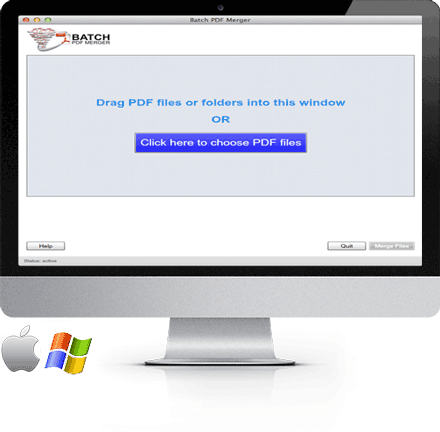
Open Batch PDF Merger and add your file by dragging it into the main window. You can also click Click here to choose PDF Files to browse and select one or more files.
Step 3: Open the page view
With your file added to the list, click the Split/View Page button. Batch PDF Merger will display every page as a selectable thumbnail in the right panel.
Step 4: Delete the pages
In the right panel, left-click the page or pages you want to delete. Hold Ctrl (Windows) or Cmd (Mac) to select multiple non-adjacent pages at once. Click Remove Page to drop them from the document.
Step 5: Save the new PDF
When the unwanted pages are gone, click Merge Files and choose where to save. Batch PDF Merger writes a new PDF without the removed pages — your original file stays untouched on disk.
Method 2: Adobe Acrobat (if you already have a subscription)
If you already pay for Adobe Acrobat Pro, its Organize Pages tool covers the same workflow. Open the PDF, choose Tools → Organize Pages, click the trash icon on each unwanted thumbnail, then save the file when done.
- Best for users already in the Adobe ecosystem
- Robust on heavily encrypted or form-heavy PDFs
- Subscription pricing (~$15–20/month)
- Bulk operations across many files are slow
- Heavy install and frequent updates
Method 3: macOS Preview (free, single PDF only)
If you're on a Mac and just need to remove pages from a single PDF, Preview is built in and free. Open the PDF in Preview, choose View → Thumbnails, select the unwanted pages in the left sidebar, and press Delete (or right-click → Delete). Save with File → Save when done.
- Already installed on every Mac
- Zero cost, zero learning curve
- One PDF at a time — no bulk operations
- Slows down dramatically on PDFs over a few hundred pages
- Mac only
Method 4: Online tools (quick but limited)
Browser-based tools let you upload a PDF, click the X on each unwanted page in the browser, and download the result. Convenient for a one-off small file — but with real tradeoffs.
- Nothing to install
- Fine for tiny non-sensitive PDFs
- Files are uploaded to a third-party server — don't use for confidential, legal, medical or financial PDFs
- Free tiers cap file size (typically 5–25 MB)
- Free tiers throttle to a few files per day
- Requires reliable internet — slow on large uploads
- Cannot bulk-process multiple PDFs at once
Bulk delete pages across multiple PDFs
A common workflow is to bulk delete the same kinds of pages — cover sheets, blank scans, watermarked promo pages — from many PDFs at once. With Batch PDF Merger:
- Drag every source PDF into the main window.
- Click Split/View Page. Pages from every file appear as thumbnails in one continuous panel.
- Select every unwanted page across all files (Ctrl/Cmd-click to multi-select).
- Click Remove Page to drop them all at once.
- Click Merge Files to write a single, cleaned-up PDF — or split back into individual files if you prefer.
Adobe Acrobat handles this too, but you'd open and edit each file in turn. Batch PDF Merger keeps every page from every file in one selectable list.
Extract specific pages vs delete the rest
Deleting pages and extracting pages are two sides of the same coin. If you only need pages 5–10 of a 200-page report, the fastest path is usually:
- Add the PDF to Batch PDF Merger and click Split/View Page.
- Select pages 5–10 in the thumbnail panel.
- Invert the selection (Ctrl/Cmd-A then Ctrl/Cmd-click the kept pages) and click Remove Page.
- Click Merge Files to write a PDF containing only pages 5–10.
For more on reordering after deletion, see our companion guide on how to rearrange PDF pages.

